Updated
Which direction should GoIP Asterisk SIP registration use?
Here, the GoIP registers to the Asterisk PBX.
Asterisk receives REGISTER and stores the gateway’s contact. An outbound Asterisk registration describes the opposite direction and is unnecessary in this gateway-to-PBX topology.
To register a GoIP with Asterisk, create a PJSIP endpoint, an inbound authentication object and an address of record that accepts the gateway’s registration. Enter the matching SIP identity, secret and PBX address on the GoIP. Verify the contact, then test incoming calls, outgoing calls and audio separately before adding more channels.
The example uses native Asterisk with res_pjsip, one GoIP SIP identity and a trusted LAN or routed VPN. Firmware menus, channel selection and authentication behaviour vary, so apply the object relationships to the exact supported gateway mode rather than treating menu labels as universal.
If the device instead requires Asterisk to register to it, use the opposite topology deliberately. Do not add reciprocal registration merely to make both status screens appear connected. For an IP-authenticated peer arrangement, document that different trust model and its network restrictions before adapting the example.
Example addresses are Asterisk 192.168.50.10 and GoIP 192.168.50.20. The endpoint identity is goip01, and a separately configured desk phone uses endpoint 2001. For gateway selection and the conversion path, see the GSM-to-SIP guide and Telarvo GoIP collection.
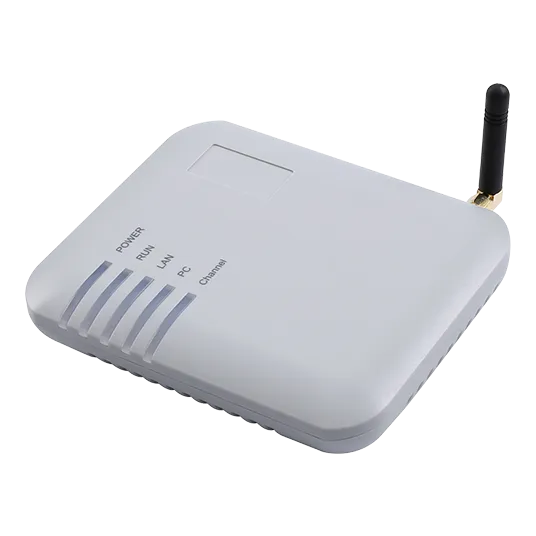
Prepare the network and configuration ownership
Confirm that the PBX and gateway can reach one another over the chosen SIP transport before editing objects. Reserve stable addresses on the LAN or VPN, identify the actual listening socket and record the firewall rules. DNS resolution, port reachability and a valid SIP account are separate prerequisites.
Inventory existing PJSIP transports so the example does not attempt to bind a duplicate socket. Confirm that the required endpoint, authentication, registrar and identification modules are loaded in the installed Asterisk build. Keep a backup of the current files and a rollback procedure that restores the previous working configuration.
Establish who owns configuration generation. Native Asterisk can use the text-file example directly after adaptation; FreePBX should use its supported configuration workflow. Editing generated files without understanding their ownership can produce a setup that works briefly and disappears on the next apply operation.
Permit signaling and media only between the required peers. Record the gateway’s RTP range and Asterisk’s actual media configuration instead of assuming that a copied range applies. Keep administration on a trusted path, and decide how redacted logs will be collected for the test. These preparations make later failures attributable to a specific layer rather than an unknown combination of routing, generated settings and credentials.
Configure one inbound-registering endpoint in pjsip.conf
Use an existing UDP transport if Asterisk already has one listening on the required address and port. A second transport on the same socket can create a conflict. Back up the current configuration and replace the placeholder secret with a unique random value before loading it.
; pjsip.conf -- native Asterisk example
; Create this transport only if an appropriate one does not exist.
[transport-goip-udp]
type=transport
protocol=udp
bind=192.168.50.10:5060

[goip01]
type=endpoint
transport=transport-goip-udp
context=from-goip
disallow=all
allow=ulaw,alaw
auth=goip01-auth
aors=goip01
direct_media=no
dtmf_mode=rfc4733

[goip01-auth]
type=auth
auth_type=userpass
username=goip01
password=REPLACE_WITH_A_UNIQUE_RANDOM_SECRET

[goip01]
type=aor
max_contacts=1
qualify_frequency=60

; Single-identity gateway on a fixed trusted address.
; Identify inbound INVITEs even when From contains the mobile caller ID.
[goip01-identify]
type=identify
endpoint=goip01
match=192.168.50.20/32
The repeated goip01 section name is intentional: one object is an endpoint and the other an AOR. For this simple registration pattern, the AOR name matches the user part of the gateway’s REGISTER To URI. Asterisk’s PJSIP configuration examples illustrate this object relationship.
The identify object maps inbound traffic from this single-identity gateway to the endpoint even when its From user is the mobile caller’s number. Restrict the network path to the gateway as well; IP identification does not replace authentication. If multiple channel identities share one IP, do not copy conflicting identify objects for each endpoint. Choose the firmware-supported identification scheme and verify incoming calls with real caller ID.
The PJSIP sections and relationships reference explains why an endpoint, auth object and AOR have different jobs. The endpoint defines call policy, the auth object supplies the authentication relationship and the AOR holds contact information. Matching labels help readability, but the actual references and SIP identities must still be correct.
Do not add nat=yes to a PJSIP endpoint. That is not a res_pjsip endpoint option. For a gateway behind NAT, assess rtp_symmetric=yes, force_rport=yes and rewrite_contact=yes; when Asterisk itself is behind NAT, also configure the appropriate transport external addresses and local networks. Use the official PJSIP NAT guide rather than mixing channel-driver settings.
Some gateways challenge outbound INVITEs from Asterisk. If yours does, add the appropriate outbound_auth object after confirming the gateway’s requirements. Inbound registration authentication and outbound call authentication serve different directions.
Also test whether the gateway responds correctly when Asterisk challenges an inbound INVITE. If the firmware cannot meet the endpoint’s call-authentication policy, use a documented, deliberately restricted peer design rather than removing protection without evaluating the impact.
How are registration identity and caller ID different?
The registering account is not the mobile caller’s number.
REGISTER establishes the contact relationship. INVITE may carry the mobile caller as its From user, so endpoint identification must match the gateway’s supported mode.
Think of two mappings. The registration mapping connects the gateway’s SIP account to its AOR and authentication object. The call mapping connects an incoming request to an endpoint and then a permitted dialplan destination. A correct registration does not automatically prove the second mapping when the gateway presents a real mobile caller number.
For this single-identity, fixed-address example, the identify object maps the gateway’s source address to goip01. That provides a stable call identity without requiring the caller’s number to match the endpoint name. The endpoint still applies its authentication policy; source identification is not an instruction to allow unauthenticated calls.
For multiple identities sharing one address, a broad per-IP mapping can become ambiguous. Use the firmware-supported scheme and test the actual REGISTER and INVITE messages. Avoid copying several identify objects that all claim the same source address. Decide how each request is distinguished before changing contact limits or adding channels.
Match the GoIP’s SIP identity to the PBX
Configure one port or one supported trunk profile first. Device labels may distinguish SIP user, authentication ID and forwarding destination; they are not automatically interchangeable. Consult the model-specific manual if the menus differ from these functional names.
| GoIP function | Example value | What to verify |
|---|---|---|
| SIP registrar/server | 192.168.50.10 | Reachable PBX address |
| SIP server port | 5060 | Matches the actual Asterisk transport |
| SIP transport | UDP | Matches the configured transport |
| SIP user/number | goip01 | REGISTER To user maps to AOR goip01 |
| Authentication ID | goip01 | Matches the auth object’s username |
| SIP password | Your unique secret | Exact match; no trailing spaces |
| GSM-to-SIP destination | goip01 | Matches the inbound dialplan target below |
| Codec and DTMF | PCMU/PCMA; RTP events if supported | Compatible with the gateway firmware |
Save the profile and follow the device’s documented apply or restart procedure. Do not assume a cold reboot or a 60-second expiry is universally required. Use the firmware’s supported registration interval and observe the resulting contact refresh.
If the gateway uses one identity per cellular channel, repeat this pattern with unique endpoint/AOR names. If it uses a shared trunk, verify its inbound identification and outbound channel-selection rules before extending the example.
Add restricted inbound and outbound test routes
Keep calls from the gateway in their own context. That context should reach only the intended extension or inbound application, rather than a general outbound dialplan. The following lab route accepts one explicit destination, making unexpected Request-URI values easy to detect.
; extensions.conf -- native Asterisk example
[from-goip]
exten => goip01,1,NoOp(Inbound GoIP test call)
 same => n,Dial(PJSIP/2001,30)
 same => n,Hangup()

; Include this only in the context of an authorised test phone.
; Set APPROVED_TEST_NUMBER to a permitted real destination first.
[goip-outbound-test]
exten => 700,1,NoOp(Outbound GoIP test call)
 same => n,GotoIf($["${APPROVED_TEST_NUMBER}" = ""]?stop)
 same => n,Dial(PJSIP/${APPROVED_TEST_NUMBER}@goip01,30)
 same => n(stop),Hangup()
Set APPROVED_TEST_NUMBER through your controlled lab configuration, using the number format the gateway and carrier require. This example does not install a general public dialing rule. The Asterisk Dial application reference documents the application used here. The PJSIP channel-dialing guide explains dialing through an endpoint’s contact. Confirm the number format at the cellular boundary independently of the PBX syntax.
Inspect the gateway’s incoming INVITE: its Request-URI user must match an extension in from-goip. If it sends a SIM number or s instead of goip01, adjust the explicit mapping after confirming the actual value. Caller ID and called destination are different fields; using the displayed caller number as a routing destination can misroute calls.
For production outbound dialing, create deliberate destination permissions and normalization rules. Do not prepend an arbitrary zero to every number, and do not copy a broad _9. route without understanding which users and destinations it exposes.
Control number mapping and channel selection explicitly
Treat the SIP called destination, mobile called number and gateway channel as distinct values. On an inbound call, a SIM-backed number may be translated to a configured SIP destination; that destination must exist in the gateway’s restricted inbound context. On an outbound call, the number sent by the PBX must match what the gateway and carrier expect.
For the test route, inspect one actual INVITE rather than guessing from a web-interface label. Record the Request-URI user, From user and selected endpoint. If the gateway sends a different destination, change the explicit inbound mapping after confirming its documented behaviour. Avoid using a permissive catch-all merely to suppress a 404 response.
Channel selection can be implemented differently in per-port and shared-trunk modes. Ask whether the dialed user, SIP account or configured gateway rule selects the radio. Then test the intended channel and observe the SIM used. A connected call through any available SIM is not proof that the required number mapping works.
For production, document permitted destinations, emergency-call requirements where relevant, number normalization and overflow. Keep those decisions in controlled PBX routes. Do not prepend a digit to every number without a carrier-specific reason, and do not grant all internal users an unrestricted gateway route as a shortcut.
Verify registration before testing media
Registration proves contact availability, not cellular service or working audio. Reload the relevant configuration, then inspect the endpoint, AOR and contact. A transport change may require an Asterisk restart; check the version’s reload behaviour and schedule disruption appropriately.
asterisk -rvvv
pjsip reload
dialplan reload
pjsip show endpoint goip01
pjsip show aor goip01
pjsip show contacts
pjsip set logger on
; Perform the controlled tests, then disable packet logging.
pjsip set logger off
For a normal digest registration exchange, an initial authentication challenge can be expected. Repeated challenges without a successful final response suggest a mismatch, while a successful REGISTER should produce a contact. pjsip show registrations concerns outbound Asterisk registration objects and is not the principal check for this inbound-registering gateway.
Use Asterisk’s PJSIP troubleshooting guidance and the res_pjsip option reference to check the objects in your installed version. Packet logs can contain phone numbers and network details; limit collection and access.
Diagnose failures by layer
A SIP contact, a registered cellular SIM and a two-way media path are independent checks. Troubleshooting one layer at a time makes the next action specific. Record the SIP response and SIM status rather than treating every failure as “registration failed.”
| Observation | Likely area | Next check |
|---|---|---|
| No REGISTER reaches Asterisk | Address, port, routing or firewall | Packet path from gateway to PBX |
| Repeated authentication failure | SIP identity or secret | To user, auth username and password |
| Contact exists; inbound call gets 404 | Dialplan destination | INVITE Request-URI and context |
| SIP works; cellular call fails | SIM or carrier service | Balance, signal, provisioning and permitted usage |
| Call connects; audio is one-way | RTP/SDP path | Advertised media address and actual RTP ports |
| IVR does not detect digits | DTMF interoperability | Negotiated event support and gateway mode |
RTP ports come from the actual PBX and gateway configuration; 10000–20000 is a common Asterisk range, not a universal prescription. Permit only the required peers and ports. Do not expose the management interface or SIP service broadly just to make a test call work.
Run an acceptance test for signaling, media and recovery
The acceptance test should produce an observable result for each dependency. Start with one authorised incoming call to the SIM and one outbound call to the approved test number. Record whether ringing reaches the intended desk phone and whether both directions have usable audio.
Test hangup from each end so the cellular channel is released rather than remaining occupied. If the intended destination includes an IVR, test digits and menu selection separately; a conversation with good audio does not prove DTMF handling. Check the displayed caller ID while remembering that the carrier controls presentation on the mobile side.
Next test one busy-channel case and the intended failure response. Restart the gateway during an authorised maintenance window and observe registration restoration before attempting another call. If a routed VPN is part of the topology, test its restoration too. Keep active-call continuity separate from recovery for new calls.
Save the endpoint/AOR state, SIP response sequence and redacted gateway status alongside the firmware and Asterisk versions. Those records define the tested configuration. Expand to more channels only after the first channel’s mapping and recovery behaviour are understood, and repeat the checks where the multi-channel design introduces a different identity or selection rule.
Adapt the setup for FreePBX and production
FreePBX generates Asterisk configuration, so native file edits can be overwritten. Use its trunk, inbound route and outbound route interfaces, and confirm that the generated PJSIP objects match the intended registration direction. Field names and available options vary by release.
For gateway-to-PBX registration, select the equivalent of receiving registration and authenticating the gateway. Confirm AOR naming, contact limits and inbound endpoint identification; GUI labels alone are not enough. Apply configuration through FreePBX, then repeat the same contact and call tests.
Before scaling, test incoming ringing, outgoing dialing, two-way audio, IVR digits, busy handling, hangup and gateway restart. Replace factory credentials, restrict management to trusted administrators and set call permissions and spending controls. Use an approved carrier arrangement rather than identity spoofing to address rejected gateway service.
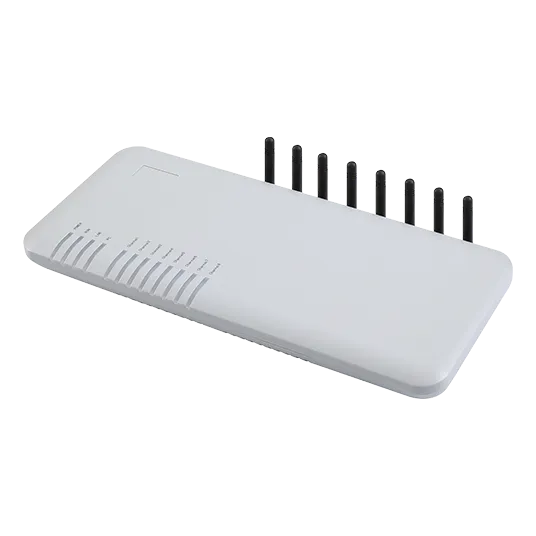
For hardware verification, consult the VoIP gateway solution and retain the exact model, firmware and Asterisk version in the deployment record. Do not send SIP secrets in public logs. Preserve the known-good configuration before firmware or PBX changes, and repeat the affected acceptance tests after an update.
Release a verified channel before scaling the deployment
The gateway-to-Asterisk topology requires a consistent SIP identity, correct endpoint/auth/AOR relationships and a reachable learned contact. Calls additionally require supported endpoint identification, deliberate destination mapping and a two-way media path. Treat each as a release condition rather than inferring the whole service from registration alone.
For a single identity, the fixed-address example provides a clear starting point. Multi-channel profiles, a different registration direction or a different authentication mode require an explicit design change. Keep production dialing permissions and recovery behaviour documented, and use the supported FreePBX workflow where it owns configuration generation.
Request a Telarvo integration review with the gateway model, firmware, PBX version, topology and redacted evidence from the failing layer. State the intended registration direction so the review addresses the actual design rather than a different SIP arrangement.
FAQ
Can several gateway channels use max_contacts=1?
Yes only if they intentionally share one registration contact under a supported shared-trunk design. If each channel independently registers the same AOR, a one-contact limit can cause conflicts or replacement attempts rather than creating one clean multi-channel trunk. Determine whether the firmware uses one profile per radio or one profile for the gateway, and test the actual contact list. Increase limits only after defining the required identity and call-selection behaviour, not simply to make registration errors disappear.
Can the same reference configuration be pasted into FreePBX files?
Do not paste it into generated files as a routine deployment method. FreePBX manages Asterisk objects and can overwrite direct edits when configuration is applied. Use its supported trunk and routing interfaces or documented custom configuration mechanism, then inspect the resulting objects. The reference relationships remain useful, but field names and generation rules vary by release. A working temporary edit is not a maintainable setup unless its ownership and persistence through subsequent apply operations are established.
What if the gateway cannot authenticate an inbound INVITE?
First confirm the observed exchange and the firmware’s supported authentication mode. Asterisk’s endpoint identification and request authentication are separate functions, so a correct source-IP match does not by itself resolve an authentication challenge. If the device requires a different peer arrangement, document and restrict that design on a trusted network with deliberate call permissions. Do not remove inbound protection casually or expose an unauthenticated public trunk. Test the supported alternative before changing the production policy.
Does voice registration also validate SMS and emergency calling?
No. Voice registration establishes a SIP relationship, not every service offered by the hardware or carrier. SMS may require a separate API or application interface, while emergency calling can involve location, routing and continuity requirements that ordinary test calls do not establish. Define and verify those functions independently if they are part of the deployment. Keep their acceptance evidence separate so a successful desk-phone call is not treated as proof of an untested messaging or emergency workflow.